Getting started
How do I create my first welcome book?
Go to Properties → click New property → give it a name and choose a type. The book will be pre-filled with example content matching your property. Open it and replace the examples with your real details.
What is the example content and how do I remove it?
When you create a property, the book is pre-filled with example text so you can see how it looks. The Hide / Show button at the bottom left of the editor toggles this example content on and off. Click Hide to clear it and see your real content only, or keep it visible as a guide while you fill in your details.
How do I add my own cover photo?
Go to Design → select Photo as the cover style → click the image area to upload your photo. You can drag to reposition and adjust the dark overlay to keep the title readable.
Sharing & exporting
What's the difference between Export PDF and Share live page?
Export PDF downloads a print-ready file you can print at home or at a print shop and leave in the property.
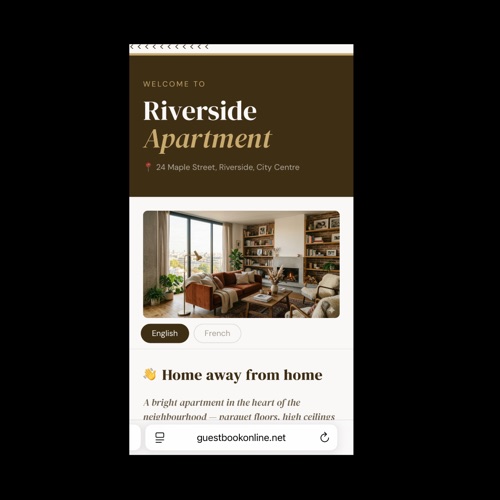
Share live page creates a hosted link (and QR code) guests can open on their phone — no printing needed. Both can be used together.
How do I share the book digitally with guests?
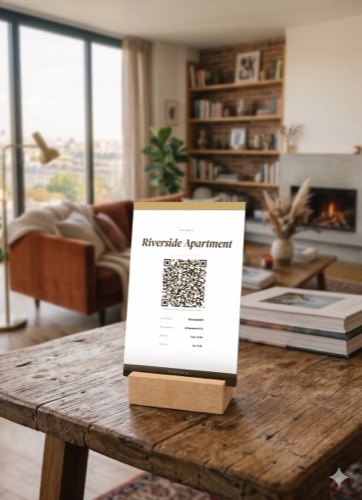
Click Export PDF → Share live page. You'll get a permanent link and a QR code. Send the link in your booking message, or print the QR code and leave it on the kitchen counter.
Can I update the book after printing or sharing?
Yes. Open the property, make your changes, then re-export. For PDFs, reprint the updated pages. For the live link, click Share live page again — it creates a new link with the latest version. The old link remains unchanged.
My WiFi password changed — do I need to redo everything?
No. On the Properties screen, select your property in the Quick update panel on the right, update the WiFi password there, and re-export just the relevant page. You don't need to open the full editor.
Translation & multiple languages
How do I translate the book into another language?
Open your property and click the Translate tab (step 4 in the top bar). Select a target language from the list and click Translate. The AI translates all your content automatically. You can add as many languages as you need — each one is stored separately. Once translated, choose how to export using the Translation mode option inside the Export PDF modal.
Can I make a bilingual book — both languages on every page?
Yes. After translating, click Export PDF and set the Translation mode to Bilingual book. The exported PDF will show your original text and the translation side by side on every page — ideal for guests who may speak either language.
Can I export a separate PDF for each language?
Yes. In the Export PDF modal, set Translation mode to Multiple languages. This generates one PDF per language — useful if you want to print different versions for different guests, or keep each language separate.
Will names, addresses and WiFi passwords get translated?
No — the AI is instructed to leave names, addresses, phone numbers, URLs and passwords exactly as written. Only the descriptive text gets translated.
Saving & files
Where is my data stored?
Everything is saved automatically in your browser — nothing is sent to a server. Your work is saved every time you make a change. Use Backup (top bar, or Cmd+S) to download a copy to your computer at any time.
I accidentally reset or lost my data — can I recover it?
If you downloaded a backup using Backup, go to the Properties page and click Import JSON to load it back — your existing properties are kept and the backup is added alongside them. If you didn't download a backup, the data cannot be recovered — browser storage is permanent until the browser clears it. This is why downloading backups regularly matters.
Can I manage multiple properties?
Yes. The Properties page lists all your properties. Click New property to add one from scratch, or Import JSON to load a backup file — it adds the imported properties alongside your existing ones without replacing anything. Each property has its own design, content, and images.